Privacy & Security
The
Privacy & Security page in Settings has your two-factor authentication and password settings.Two-factor authentication
Two-factor authentication (2FA) protects your account with a second step at sign-in. After your password, or after signing in with Google or Microsoft, you enter a 6-digit code from an authenticator app on your phone. Any authenticator app works, such as Google Authenticator, Microsoft Authenticator, 1Password, or Authy.
2FA is optional for using Bigger Piggy, but you need it to link a bank account.
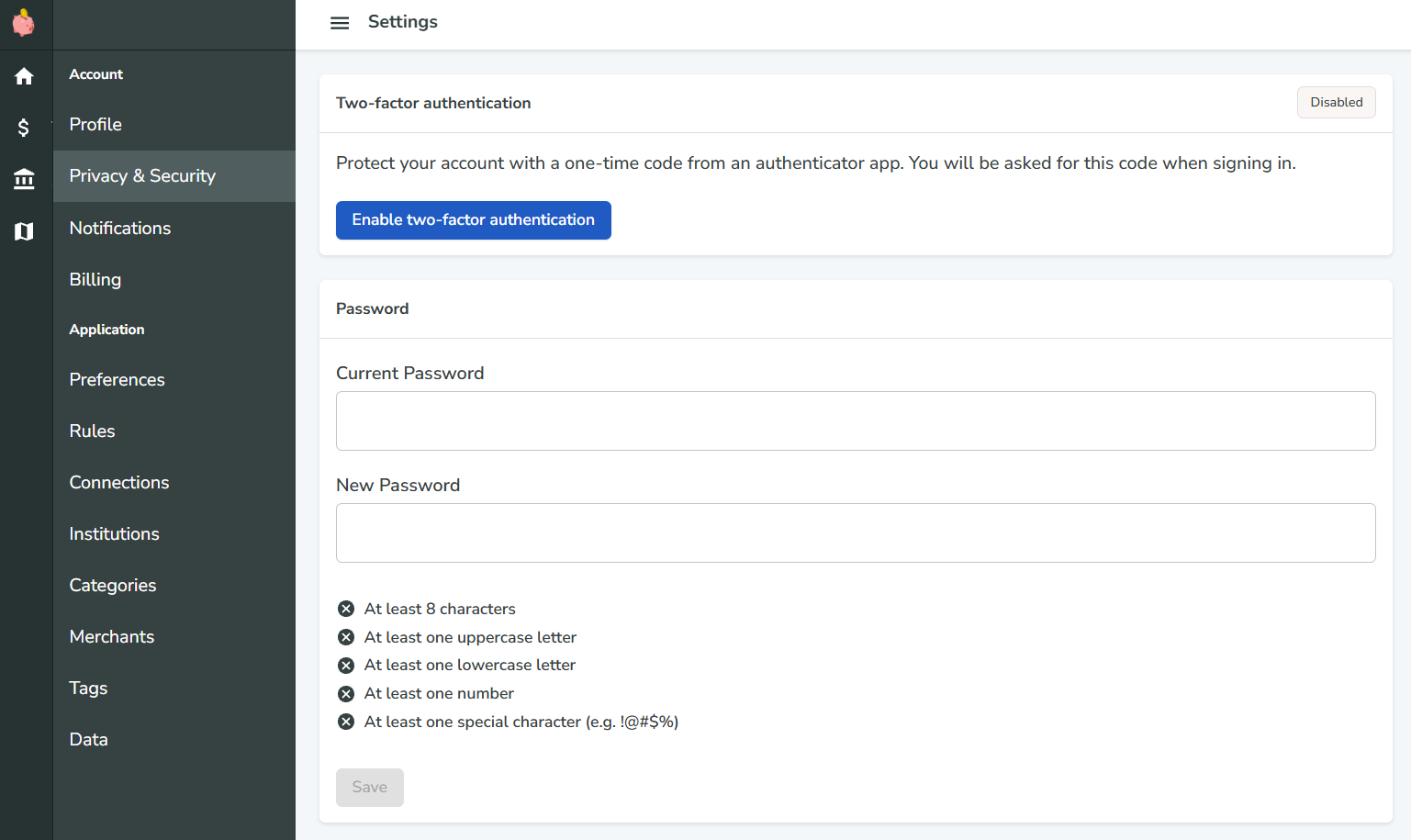
Turn on 2FA
- Click Enable two-factor authentication.
- Scan the QR code with your authenticator app. If you can't scan it, type the setup key shown under the code into the app instead.
- Enter the 6-digit code from the app and click Verify and enable.
From then on, Bigger Piggy asks for a code from your app every time you sign in.
Linking a bank after turning on 2FA
To link a bank, 2FA has to be turned on and you have to have used it to sign in during the current session. If you turned on 2FA after signing in, you'll see "You must verify 2FA before linking bank accounts". Sign out, sign back in with your code, and try again.
Turn off 2FA
Click Disable two-factor authentication. Until you turn it back on, you can't link a bank or use Update Login on a connection.
Lost your authenticator?
If you lose the phone with your authenticator app, click Lost your authenticator device? on the sign-in code screen to email support. We'll help you get back in.
Change your password
If you sign in with an email and password, change it here. Enter your Current Password and a New Password, then click Save.
The new password needs at least 8 characters, with an uppercase letter, a lowercase letter, a number, and a special character.
Forgot your password? Click Forgot your password? on the sign-in page. We'll email you a code to reset it.
If you sign in with Google or Microsoft, manage your password with them instead.