Categories
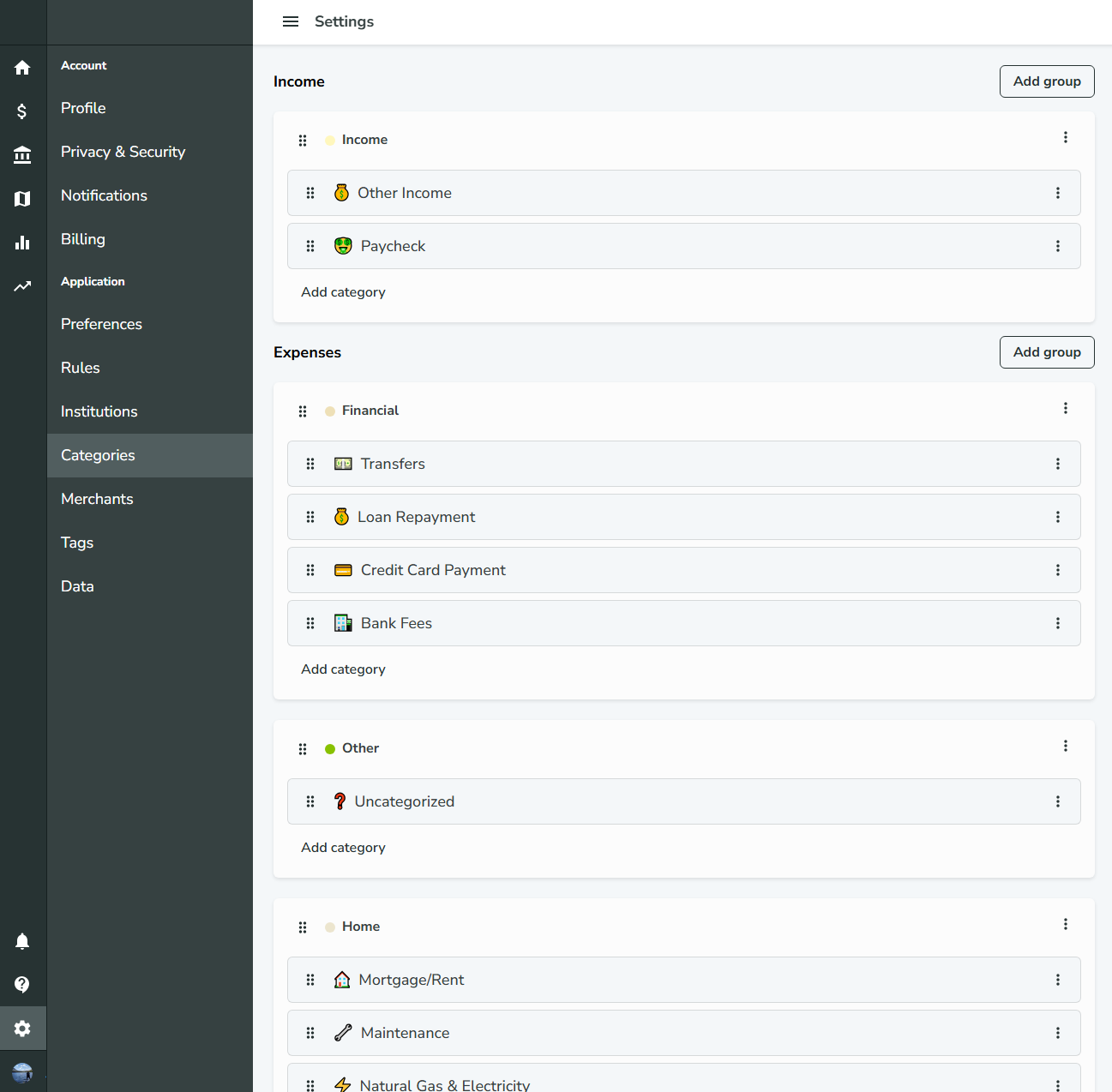
Categories help you organize and track your transactions in Bigger Piggy. They are essential for budgeting, reporting, and understanding your spending habits.
Purpose and Use Cases
Categories allow you to:
- Group similar transactions together (e.g., Groceries, Utilities, Dining Out)
- Set and track monthly budgets for each category
- Filter and analyze transactions by category throughout the app
- Gain insights into your spending and income patterns
Category Structure
Each category has:
- Name: A descriptive label (e.g., "Groceries")
- Emoji: A visual icon for quick identification
- Category Group: The group this category belongs to
Category Groups
- Each group has a name and an emoji
- Groups can be marked as income, expense, or transfer
- You can create as many groups as you wish
Understanding Transfer Categories
Transfer categories are special categories that track money movements between your accounts rather than actual spending or income. These transactions are excluded from budgets and spending reports because they don't represent new money entering or leaving your financial picture.
What Counts as a Transfer?
Common transfer examples include:
- Moving money from your checking account to your savings account
- Paying off a credit card using funds from your bank account
- Transferring money between investment accounts
- Moving funds from one bank to another
Why Transfers Are Excluded
Transfers are excluded from budgets and spending totals because they represent the same money moving between accounts, not new spending or income. Including them would create double-counting and distort your actual financial picture.
For example, if you spend $100 on groceries using your credit card and then pay $100 to your credit card from your checking account, you've only spent $100 total. The credit card payment is just moving existing money to cover a debt you already incurred.
Transfer Categories in Bigger Piggy
Bigger Piggy provides default transfer categories like:
- Credit Card Payment: Specifically for tracking credit card payments
- Transfer: For general account-to-account money movements
You can also create custom transfer categories to better organize your transfer transactions.
Creating a Category
To create a new category:
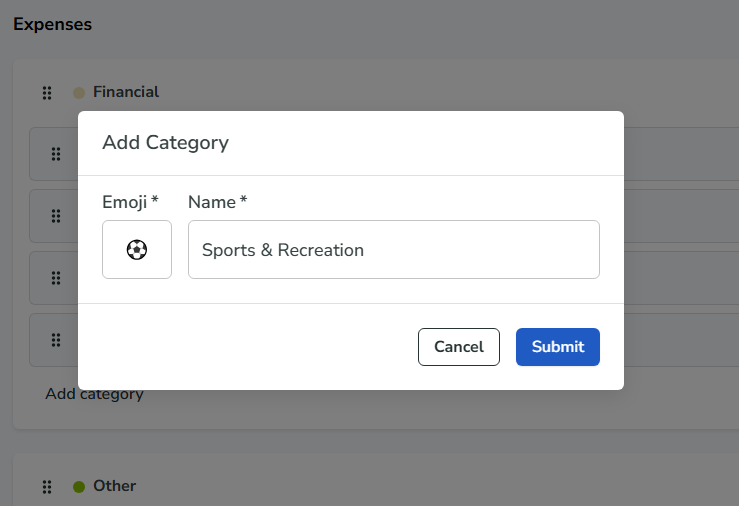
- Go to the Categories page.
- Click the Add Category button in a Category Group card.
- Enter a name, select an emoji, and click Submit.
Default and Custom Categories
- Bigger Piggy comes with a set of default categories and groups that cannot be deleted
- Default categories are linked to Plaid categories. Transaction imported from Plaid will be automatically categorized to a default category.
- Users can create unlimited custom categories and groups to fit their needs
Assigning Categories to Transactions
- Every transaction in Bigger Piggy must have a category
- Categories can be assigned automatically (e.g., via rules) or manually
- Transfer categories should be used when money moves between your accounts without creating new spending or income
Categories and Budgets
- Categories are closely tied to budgeting in Bigger Piggy
- Users can set a monthly budget for each expense category
- Transfer categories are excluded from budgets since they don't represent actual spending
- Budgets help you track spending and stay on top of your financial goals
Filtering and Analyzing by Category
- Categories can be used to filter transactions in various parts of the app (e.g., transaction list, reports, dashboards)
- Transfer categories are typically excluded from spending reports and analysis to provide a clearer picture of your actual spending patterns
- This makes it easy to see where your money is going and identify trends without the confusion of double-counting transfers
By organizing your transactions with categories and groups, you can take full control of your finances and make informed decisions about your spending and saving. Understanding the difference between expense categories and transfer categories ensures your budgets and reports accurately reflect your true financial situation.