Views
You can view your transactions either in table format or in a calendar view. The view can be changed using the toggle button in the top right corner of the Transactions page.
Table
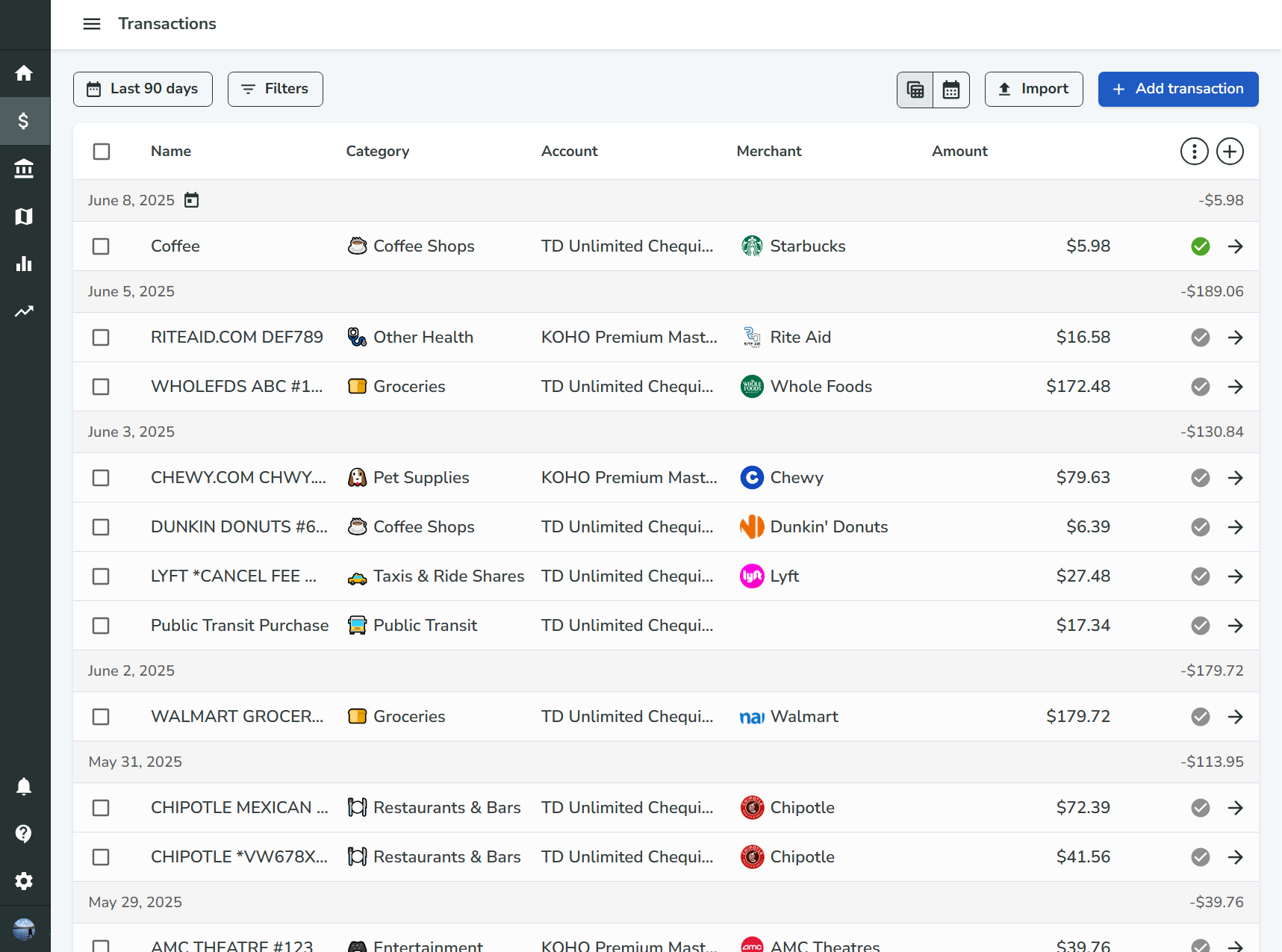
The transactions table is the main view for managing your transactions. It displays a list of all your transactions, with columns for their name, date, amount, and other properties.
Column Management
The columns can be hidden, shown, or reordered by clicking the "+" button in the header towards the right side of the table. Additionally, columns can also be rearranged by dragging the drag handle icon in the column header.
Columns can also be resized by dragging the edge of the column header.
Grouping
The transactions can be grouped by date, category, account, or merchant. This can be configured in the additional options menu.
The group collapsed state can be toggled by clicking the group row component.
Sorting
The transactions can be sorted by clicking the column header. The sorting can be ascending or descending, and can be toggled by clicking the column header again. It can be cleared in the additional options menu.
Calendar
The calendar view displays a calendar with a list of transactions for each day.
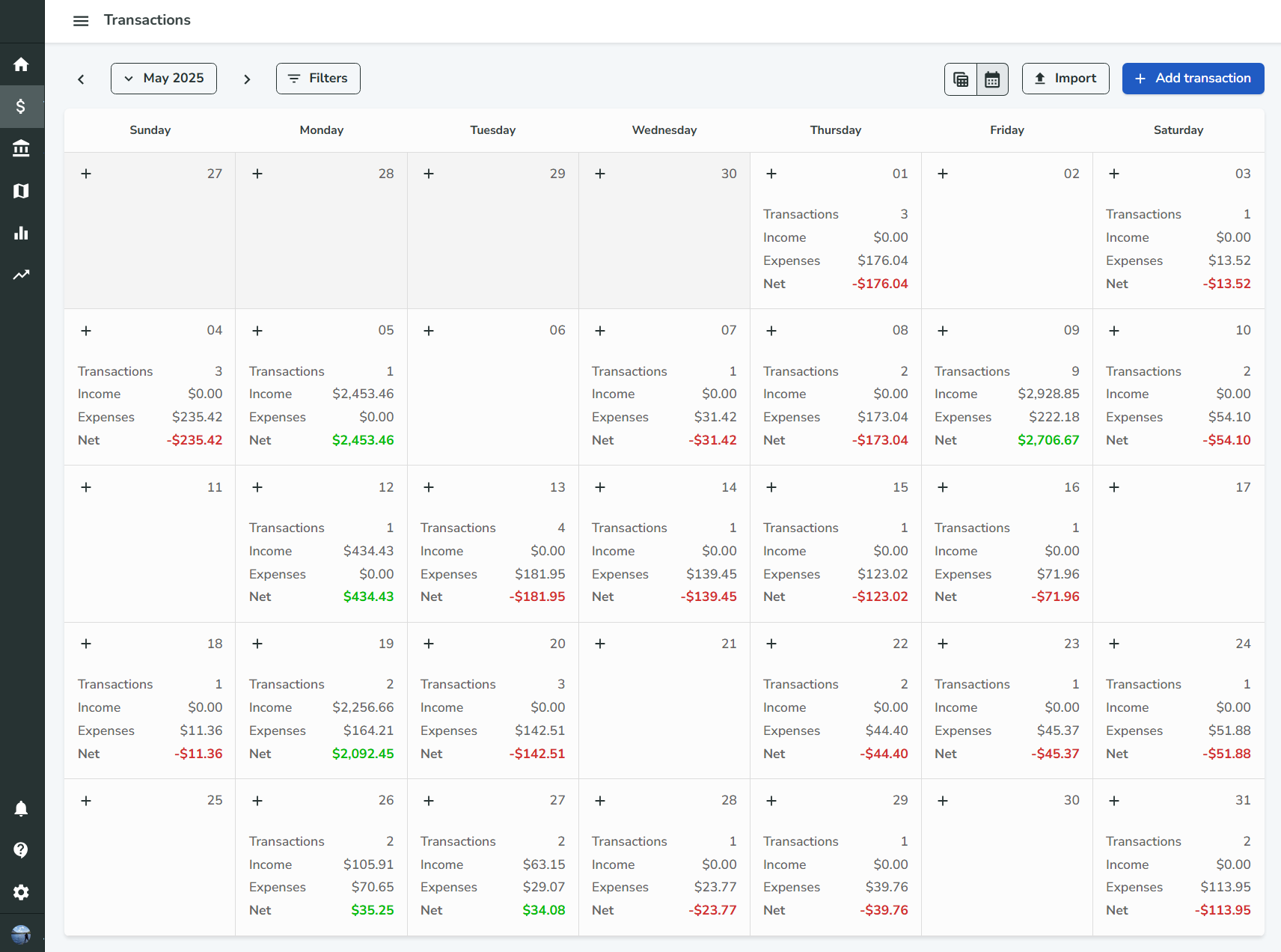
Clicking on a day will open a popup with a list of transactions for that day.
Filtering
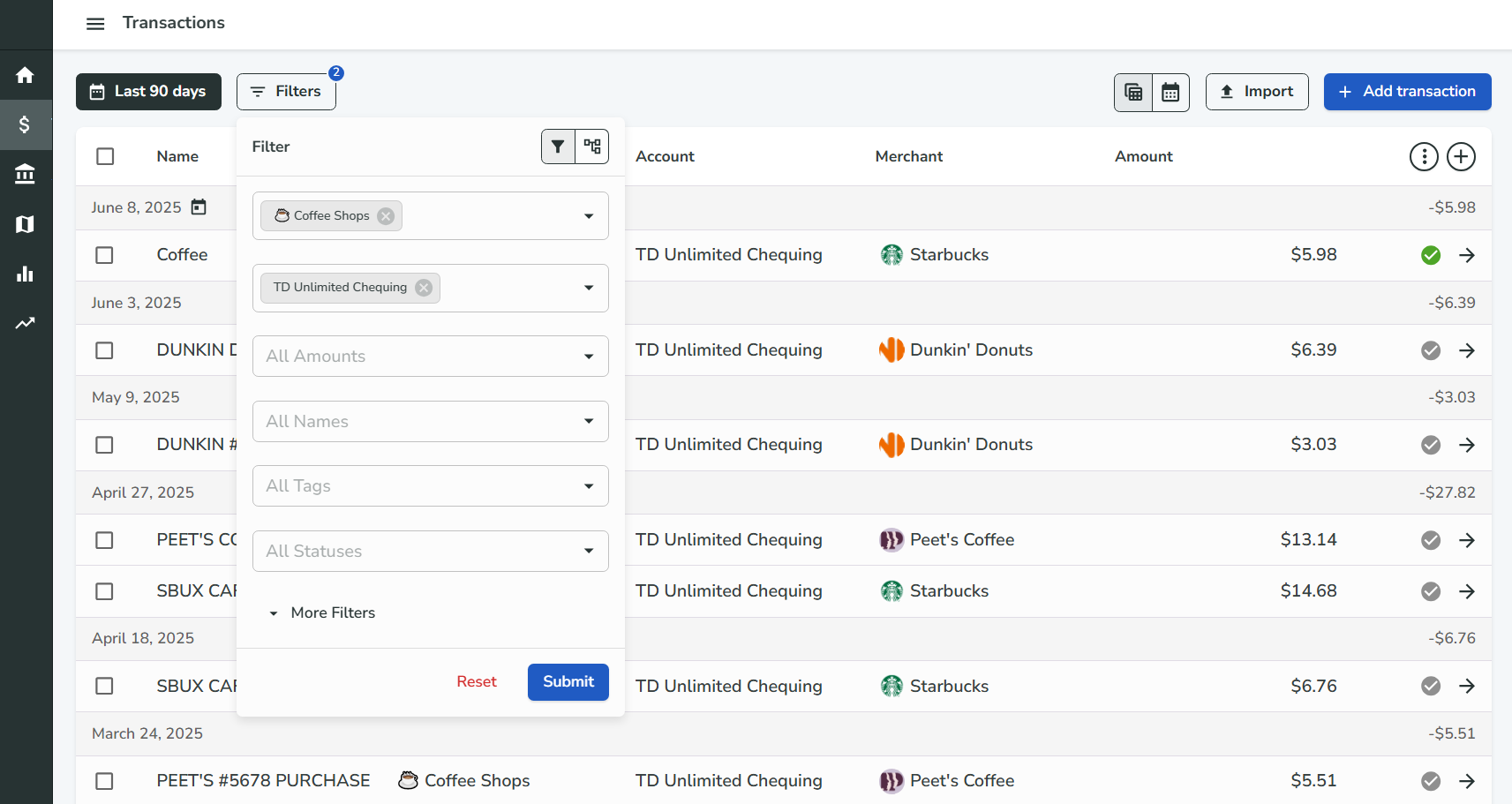
The transactions can be filtered by date by using the
date range selector. Additionally, other properties can be filtered by clicking the Filters button in the top left corner of the page. This will open a popup with a list of additional properties that can be filtered.