Getting Started
This guide will walk you through the essential steps to set up your Bigger Piggy account and start managing your finances effectively. Follow these steps to get up and running:
1. Create an Account
If you haven't done so already,
sign up here to create your Bigger Piggy account. Registration is quick and easy, and you'll be ready to start organizing your finances in no time.2. Select Your Onboarding Path
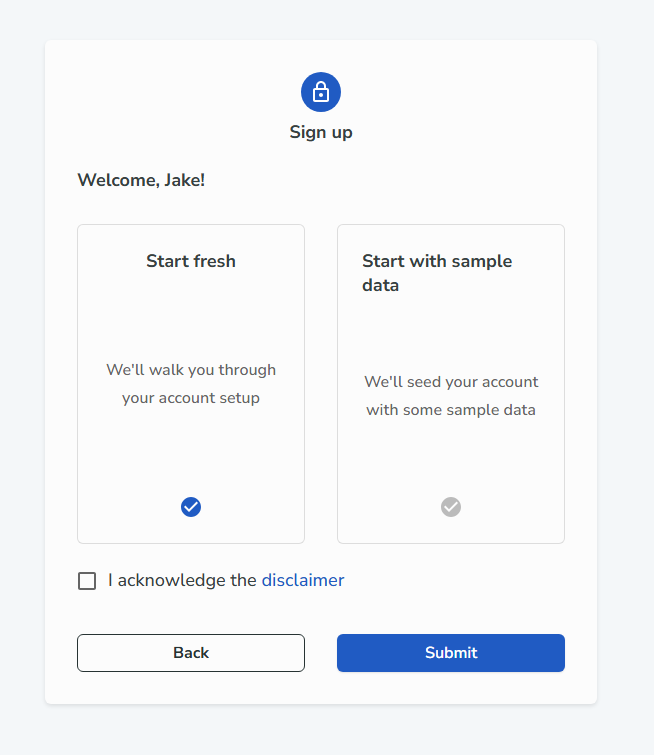
When you first log in, you'll be prompted to choose how you want to get started:
- Start Fresh: Begin with a clean slate and set up your own accounts, categories, and data.
- Seed Account with Sample Data: Explore Bigger Piggy using pre-filled sample data to see how everything works before adding your own information.
For the rest of this guide, we'll assume you've chosen the Start Fresh path.
3. Organize Your Categories and Groups
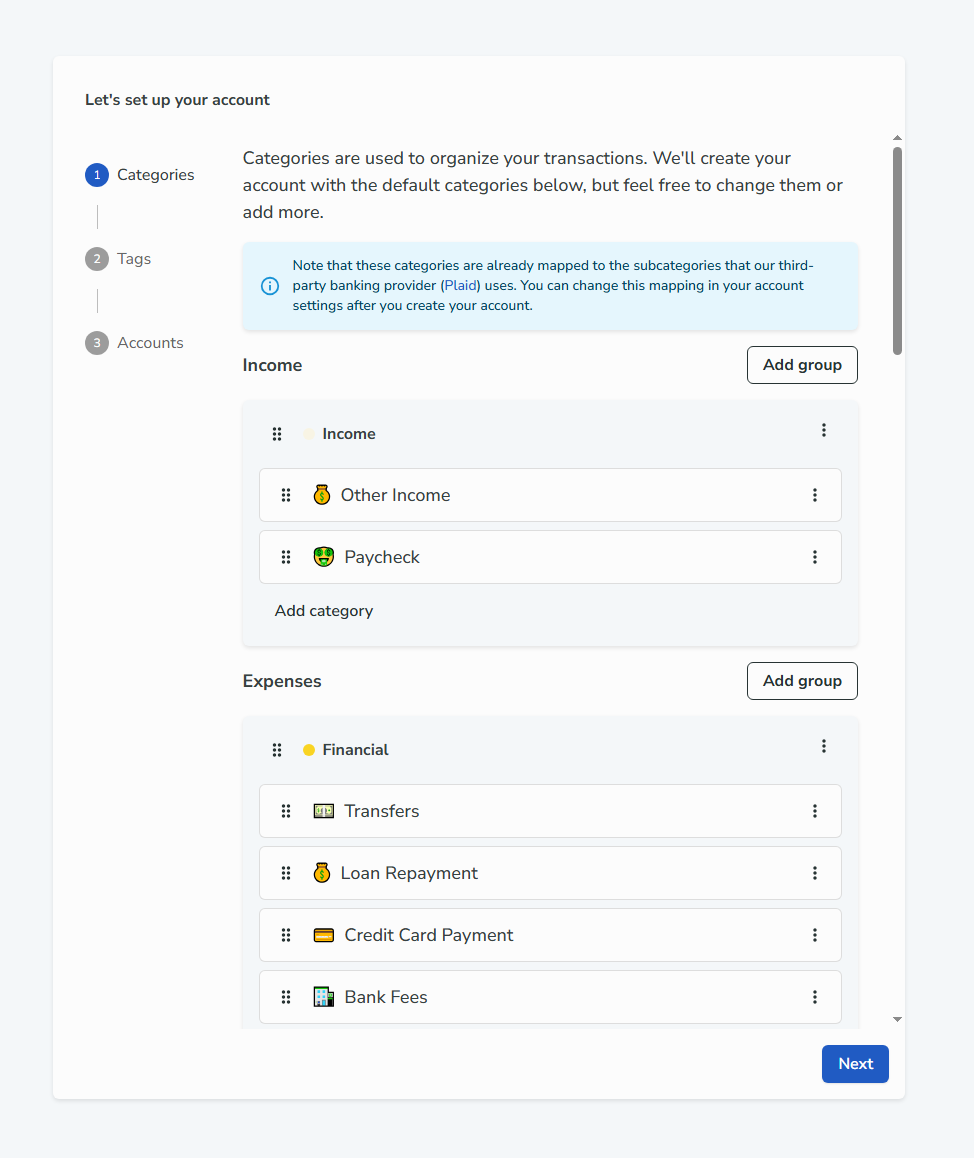
Bigger Piggy provides a set of default categories and groups to help you get started. You can:
- Add new categories or groups to fit your needs.
- Rename existing categories or groups.
- Reorder categories and groups for better organization.
Note: Default categories and groups cannot be removed, but you can customize them as needed.
4. Add or Remove Tags
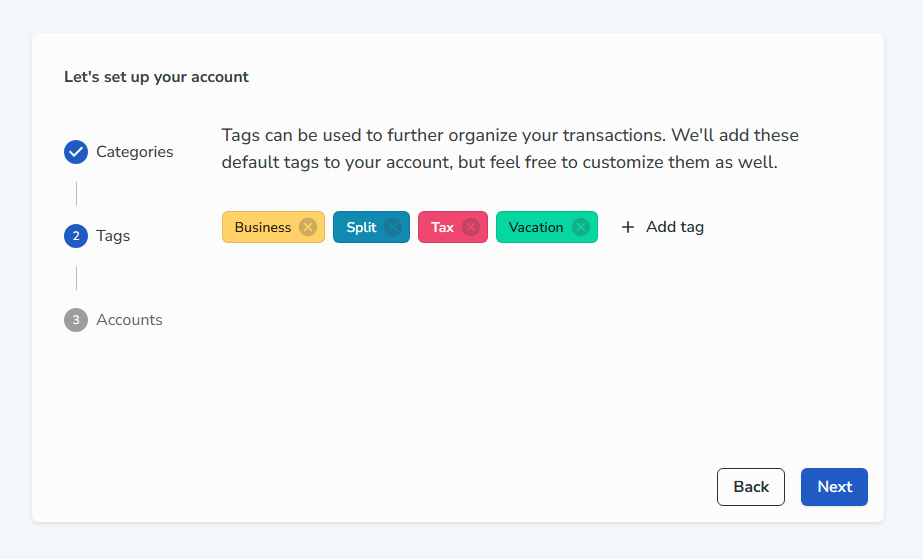
Tags help you further organize your transactions. You can:
- Add new tags to label transactions for specific purposes (e.g., "Vacation", "Work Expenses").
- Remove tags you no longer need.
Tags can be used throughout the app, including in queries and reports, to help you analyze your spending and income in more detail.
5. Add a Bank Account
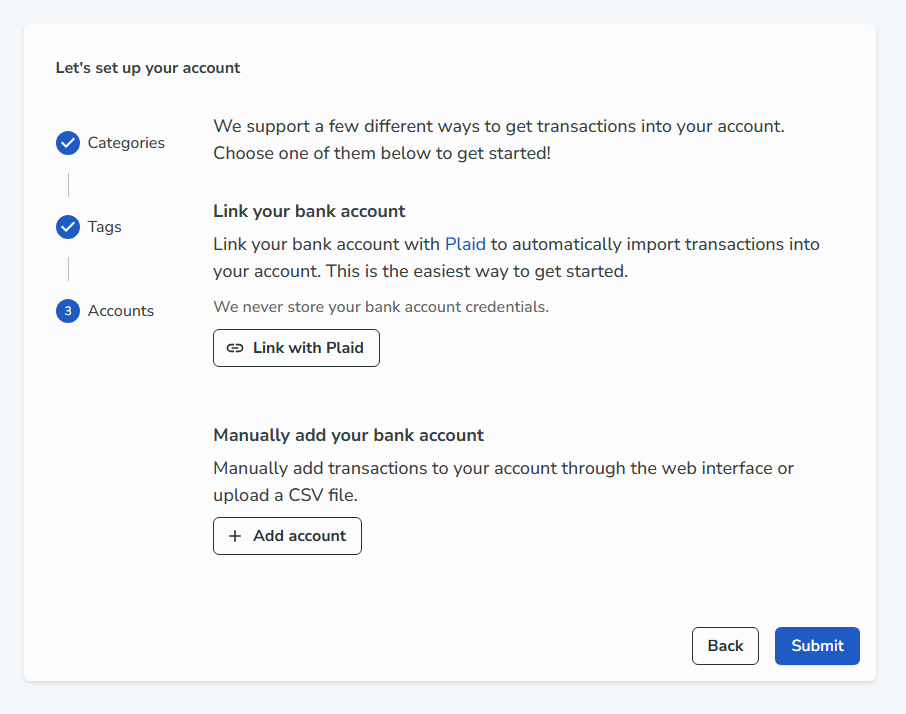
To track your finances, you'll need to add at least one bank account. You have two options:
-
Link Your Account Using Plaid:
- Securely connect your bank account to automatically import transactions.
- Learn more about Plaid here.
-
Add a Manual Account:
- Fill out the Add Account Form to create a manual account.
- You'll need to manually add your transactions. You can do this by:
- Uploading a CSV file of your transactions.
- Adding transactions individually through the Add Transaction Form.
6. Create Your Budget
Each category in Bigger Piggy can have a budget value for a specific month. To set up your budget:
- Assign a budget amount to each category for the current month.
- Adjust your budget as needed to reflect your financial goals and priorities.
You're all set! With these steps, you'll have a solid foundation for managing your finances with Bigger Piggy. Explore the rest of the help center for more tips and advanced features. If you need assistance, check out the
Welcome page for ways to get help.