Actions
You may perform various actions on your transactions, including adding new transactions, modifying existing ones individually or in bulk, splitting a transaction into multiple transactions, and deleting transactions you no longer need. These actions help you keep your records accurate and up to date.
Add a Transaction
Bigger Piggy supports adding transactions in several ways: manually through the UI, by uploading a CSV file, or automatically by linking your bank account with Plaid.
Manually add a transaction
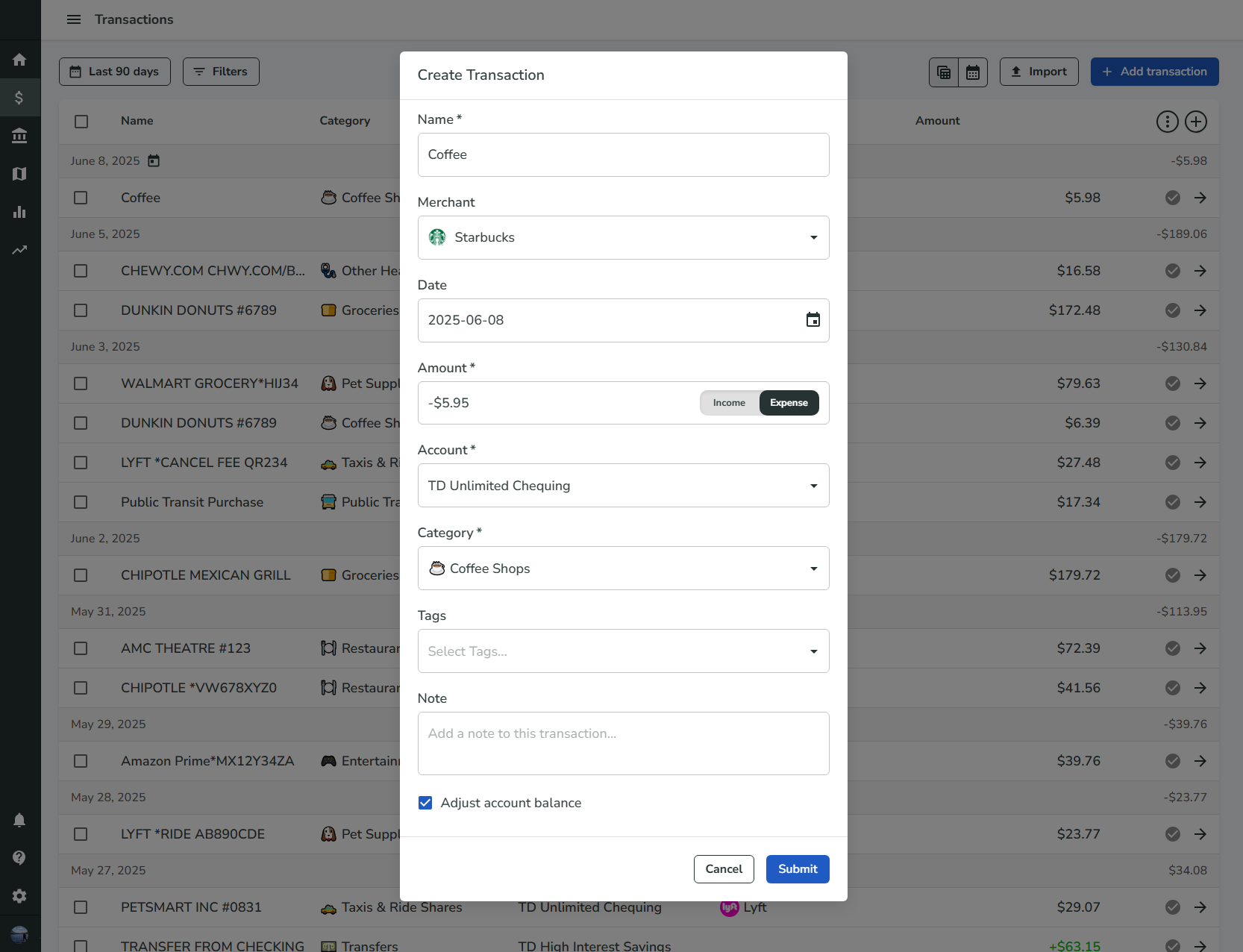
To add a new transaction manually, click the "Add Transaction" button in the top right corner of the Transactions page. This will open a dialog where you can enter the details of the transaction.
Add transactions from a CSV file
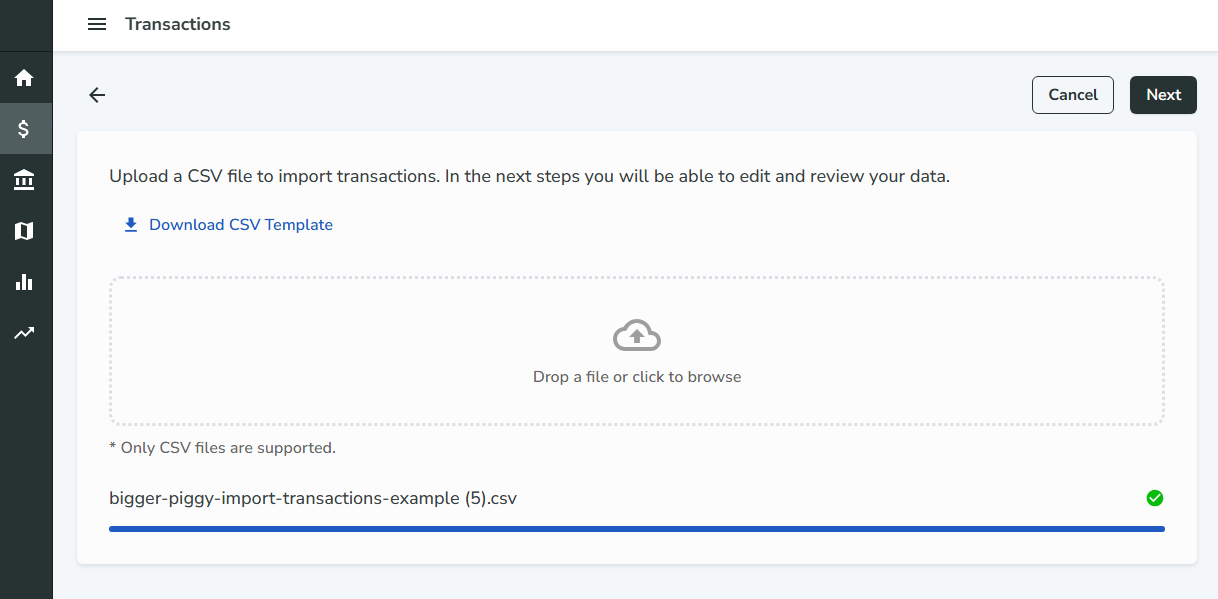
To add transactions from a CSV file, click the "Import" button in the top right corner of the Transactions page. This will bring you to a new page where you can upload a CSV file containing your transactions.
Automatically import transactions
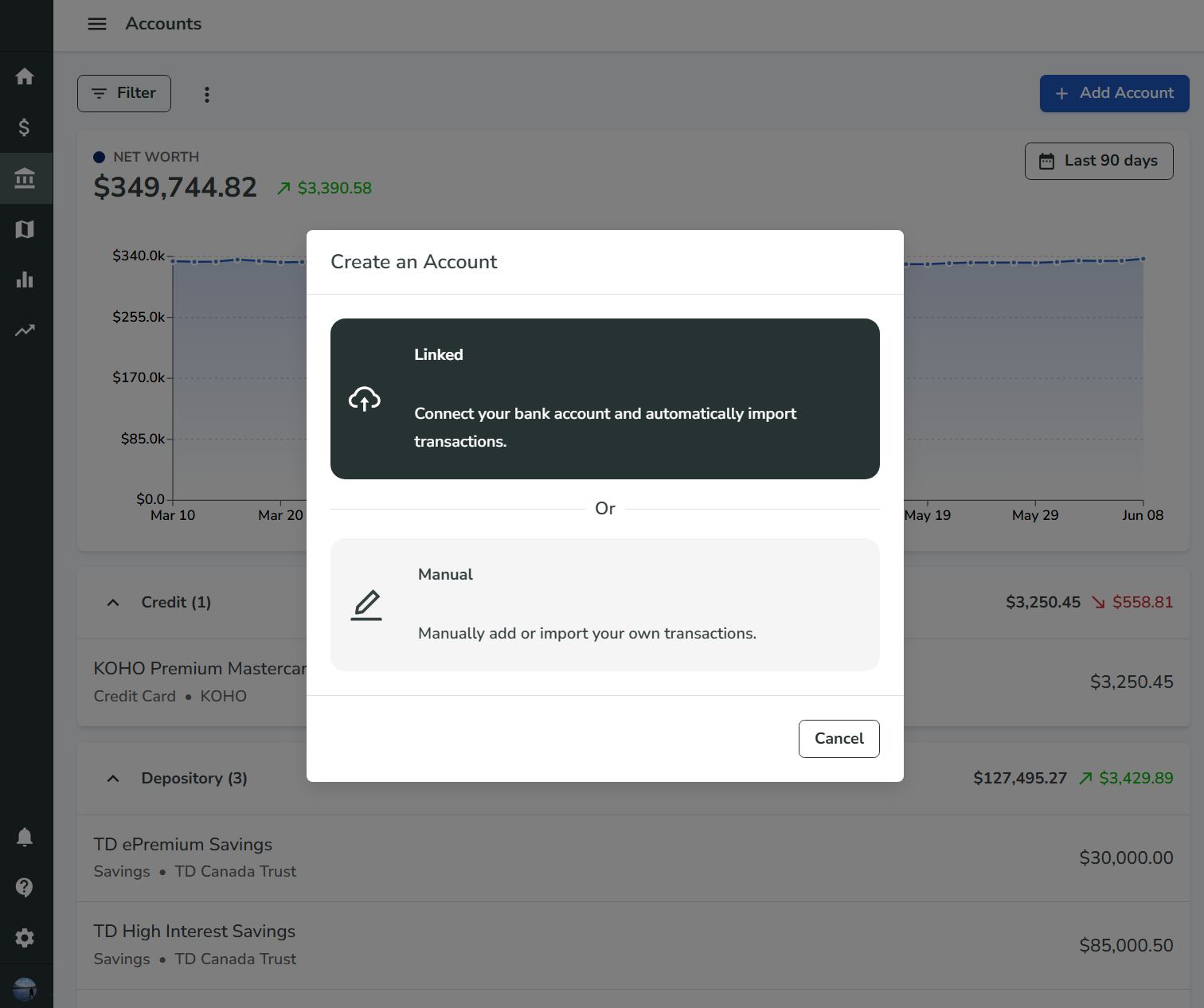
To automatically import your transactions from your bank account, create a linked account by clicking the "Add Account" button in the top right corner of the Accounts page. This will open a new dialog that will walk you through the process of linking your account with
Plaid.Bigger Piggy will periodically import new transactions from your linked accounts.
Modify a Transaction
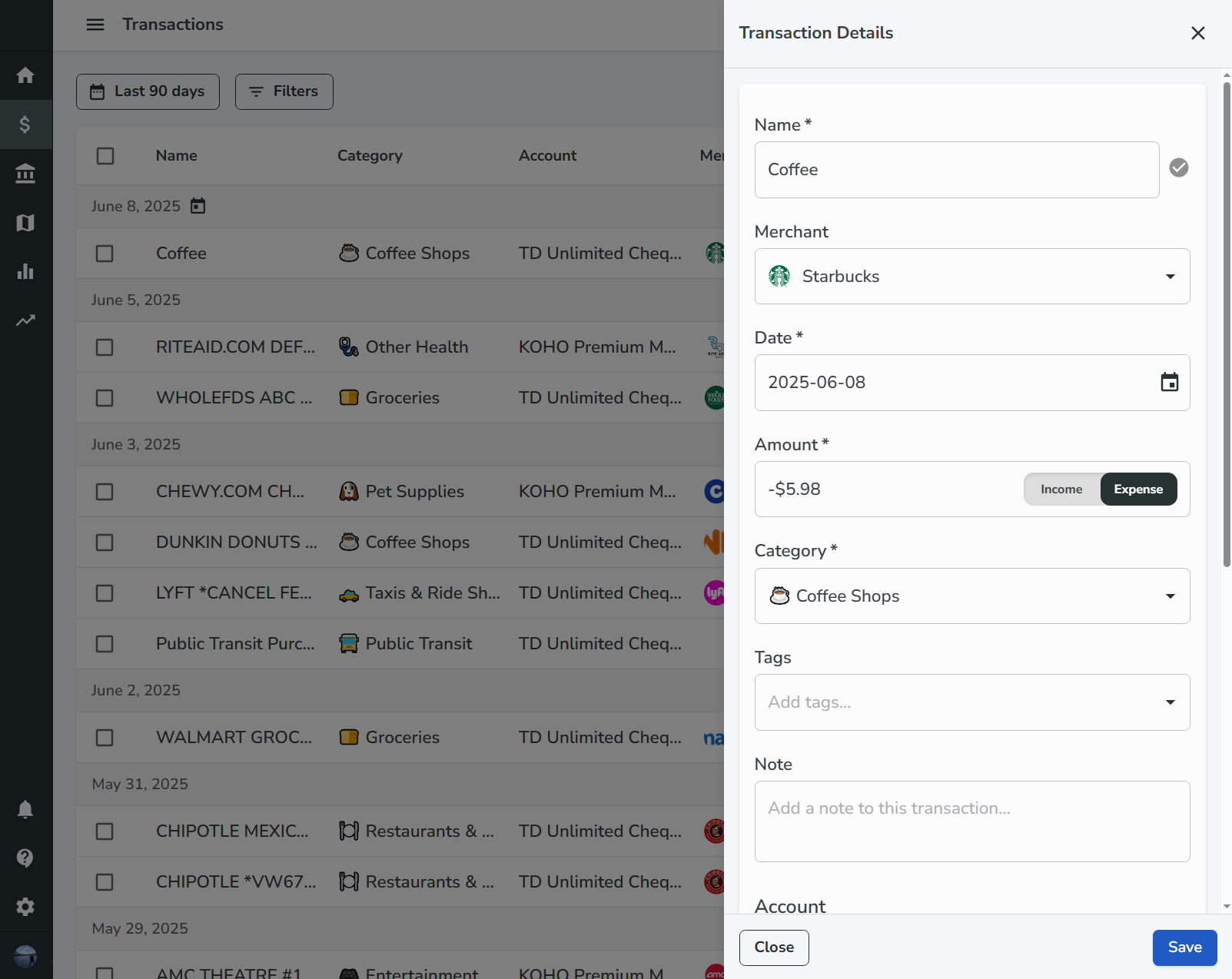
Transactions can be modified either in-line by clicking into a cell in the Transactions table, or by in the detailed drawer view by clicking the arrow icon on the right side of the transaction row.
Split a Transaction
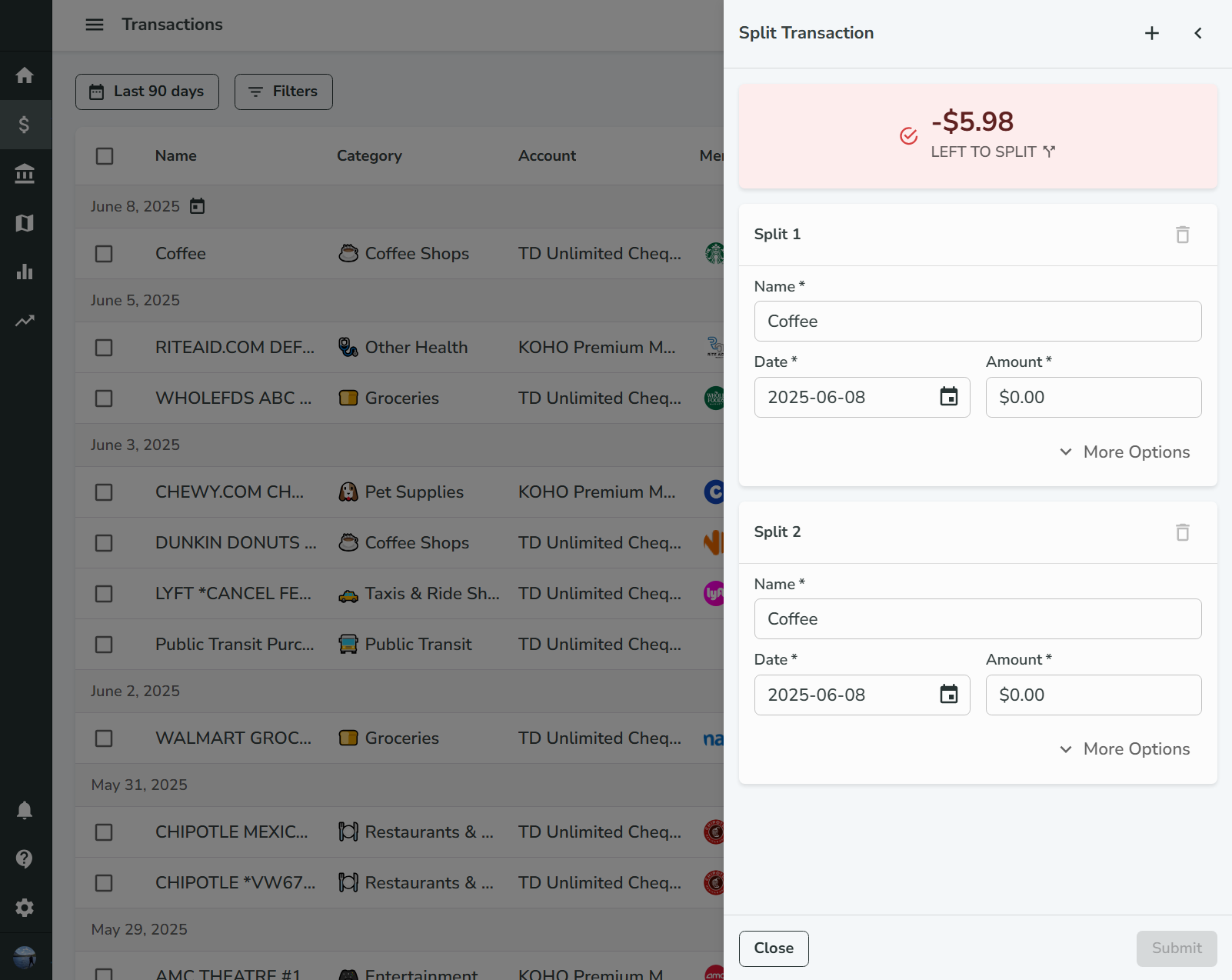
To split a transaction, click the "Split Transaction" button under the Actions section in the detailed drawer view. This will open a new view where you can enter the details of the split transactions.
Delete a Transaction
Transactions can be deleted by clicking the "Delete Transaction" button under the Actions section in the detailed drawer view. Deleted transactions cannot be recovered.
Bulk Modify Transactions
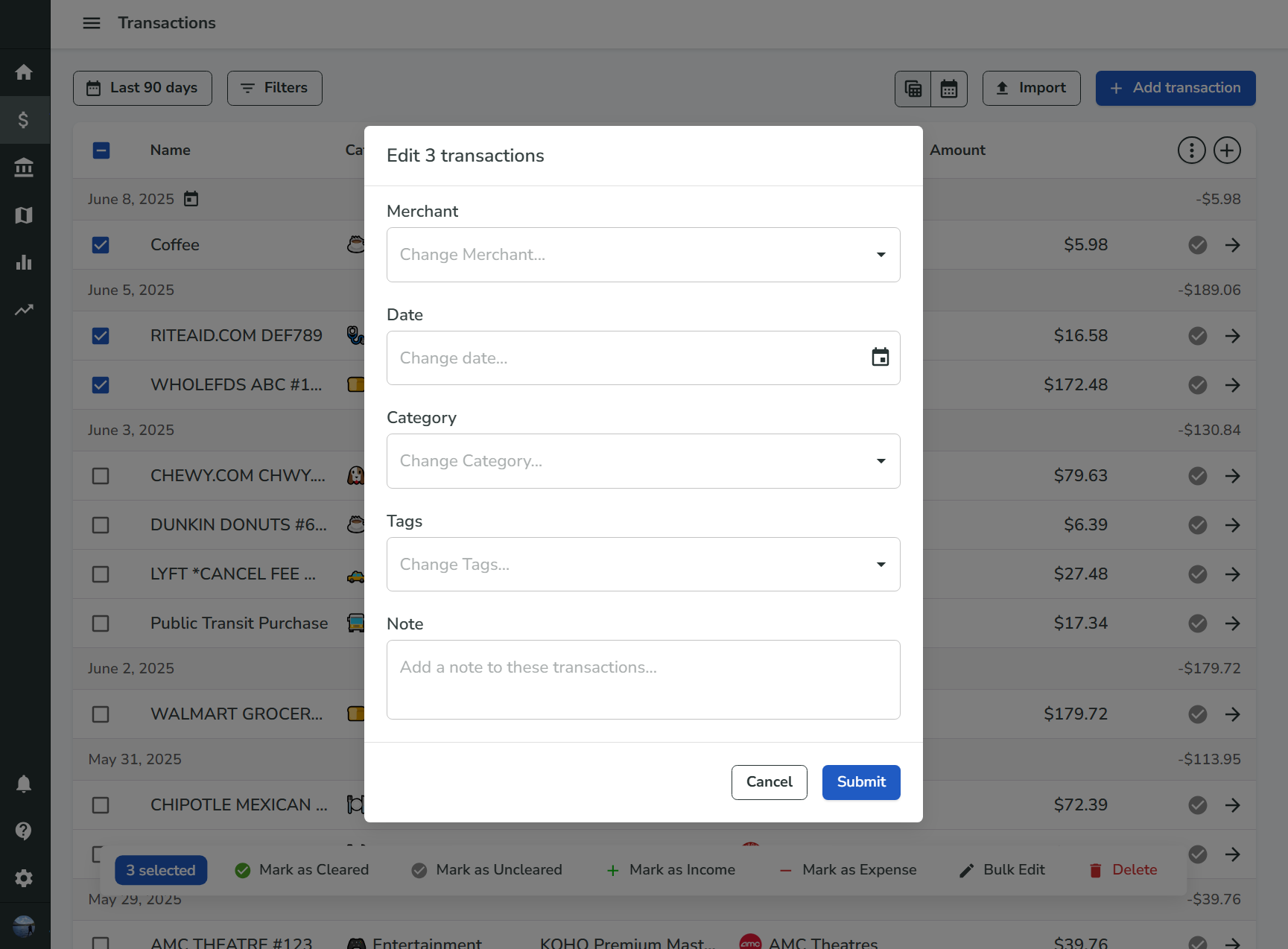
Transactions can be modified in bulk by selecting the transactions you want to modify and clicking the "Bulk Edit" button in the toolbar near the bottom of the table. This will open a new dialog where you can modify the selected transactions.
Alternatively, you may modify the transactions by clicking one of the quick actions in the toolbar, such as "Mark as Income" or "Mark as Expense".